 ScenesGitHub
Edit by hand.Or just ask.
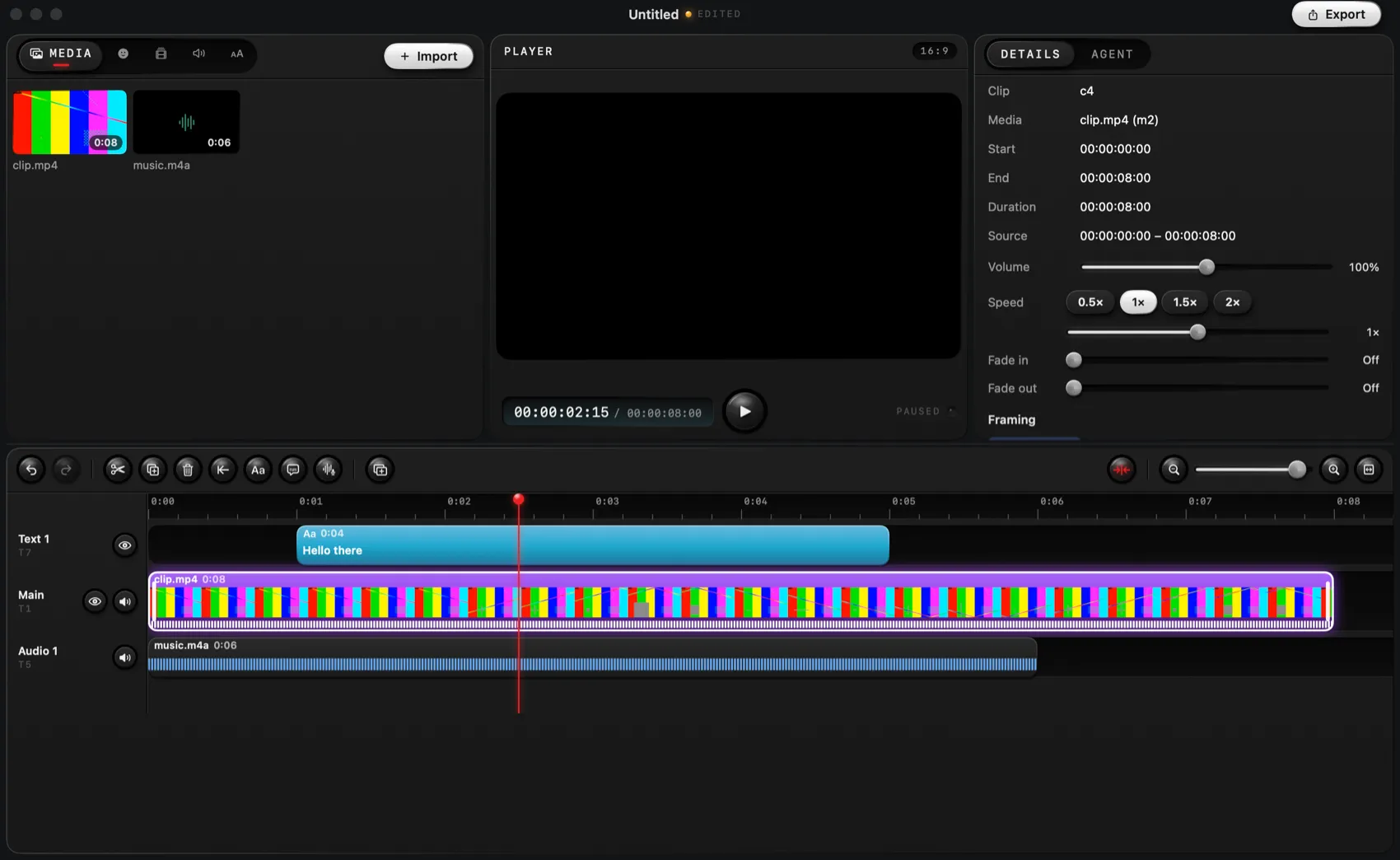
Scenes is an open-source video editor for macOS. Every change you or the agent makes lands on the same timeline, live, with undo.
Editing
Cut it your way.
Scroll to move the playhead. Split a clip where it stands, ripple delete the rest, and the timeline closes the gap.
Captions
Speech becomes captions.
Auto Captions transcribes on your Mac and drops timed captions on a text track.
Agent
Or just ask.
The agent uses the same edit commands you do, and each reply is one undo step.
Look and export
Finish it in one place.
Looks and export come from one compositor, so what you preview is what you get.
- 0:05intro.mp4
- 0:04skate.mp4
- 0:03coffee.mp4
- 0:12music.m4a
- Clip
- None selected
- Start
- 00:00:00:00
- End
- 00:00:12:00
- Duration
- 00:00:12:00
Assistant Ready
Now you drive.
This is a web copy of the editor with three short clips on its timeline. Press play, drag the playhead, split a clip, or open the Agent tab and ask for an edit.
- 0:05intro.mp4
- 0:04skate.mp4
- 0:03coffee.mp4
- 0:12music.m4a
- Clip
- None selected
- Start
- 00:00:00:00
- End
- 00:00:12:00
- Duration
- 00:00:12:00
Assistant Ready
- Space play and pause
- Drag move the playhead
- S split
- ⌫ ripple delete
One set of edit commands for you and the agent
Anything you can click, the agent can do, and the other way round. Each command is checked before it runs, and each one can be undone.
You
Mouse and keyboard on the timeline, the way you edit today.
The agent
Asks in plain words become the same commands. It reads speech through transcripts and sees the picture through frame grabs.
The same timeline
Both go through one command set, so the timeline, the preview and the export always agree.
Editing
Cut it your way.
A multi-track timeline with filmstrips and real audio waveforms. Split, trim, move and ripple delete with snapping, shuttle with J, K and L, and place every clip on the canvas.
Look and sound
Finish it in one place.
Transitions, colour, captions and audio are part of the editor. Preview, export and the agent's frames all match, because one compositor renders all three.
Keyboard
Hands on the keys.
The common moves each have a key. Pick a shortcut to see it on the keyboard.
Shuttle. Move through the timeline with J, K and L.
Single-letter shortcuts act while the timeline has focus.
One edit. Every shape.
Pick a canvas when you start, or change it later. Each clip keeps its place on the canvas.
Framing keeps its place. Scaled exports render the project on a resized canvas, so framing and text stay where you put them.
Presets that warn you. Platform export presets tell you when the canvas shape doesn't match.
Or just ask. "Make it 9:16 and add captions" is one message to the agent.
Ask in plain words
The agent uses the same edit commands you do. Each reply is one undo step.
Make it 9:16 and add captions
The canvas is now vertical and the speech is captioned.
- Canvas set to 9:16 (1080×1920)
- Added 18 captions from the speech
2 edits · Undo these changes
Camera on top, gameplay below, camera muted
Your camera fills the top third and the gameplay fills the bottom two-thirds. The camera audio is muted.
- Canvas set to 9:16 (1080×1920)
- Added Video 2 (t5)
- Added c6 on Video 2 at 0:00.00
- Framed c6: top third, fill
- Framed c4: bottom ⅔, fill
- Set c6 volume to 0%
6 edits · Undo these changes
Cut the first 10 seconds
The first 10 seconds are gone and everything after has moved up.
- Split c1 at 0:10.0 → c1, c2
- Deleted c1 and closed the gap
2 edits · Undo these changes
Split into 60-second parts and export each
Three parts are exported to your Scenes folder.
- Split c1 at 1:00.0 → c1, c2
- Split c2 at 2:00.0 → c2, c3
- Exported Part 1.mp4
- Exported Part 2.mp4
- Exported Part 3.mp4
5 edits · Undo these changes
Add a crossfade between every clip
Each cut now has a crossfade.
- Crossfade added at 0:08.2
- Crossfade added at 0:15.6
- Crossfade added at 0:24.0
3 edits · Undo these changes
And a whole lot more
The small things that make an edit go faster.
Snapping
Clips snap into place. Press N to turn it on or off.
Ripple delete
Remove a clip and close the gap in one move.
Duplicate and paste
⌘D duplicates a clip. Copy and paste work too.
Shuttle
Move through the timeline with J, K and L.
Jump between cuts
Send the playhead from clip to clip and cut to cut.
Track mute and hide
Silence or hide any track while you work.
Split at the playhead
⌘B cuts the clip where the playhead sits.
Volume curves
Per-clip volume, with curves shown as a line on the clip.
Photos and stills
JPEG, PNG, HEIC and GIF, five seconds long by default.
Text styles
Caption, Subtitle and Title presets with size, colour, outline and box.
Zoom, pan and mirror
Frame each clip inside its own region of the canvas.
Only my voice
Caption just the speaker when the mic also picked up other sound.
It hears
Timestamped transcripts tell it what was said and when.
It sees
Labelled frame grabs show it the picture.
One undo per reply
Everything it did in one reply undoes together.
A list of every edit
The chat lists each change it made.
Syncs two recordings
Lines up a camera and a screen capture to within about 12 ms.
Exports for you
Ask it to split into parts and export each one.
Project files
Saved as readable JSON, wherever you keep them.
Media stays put
Your files are referenced, never copied.
Relink missing media
Missing files are marked, with Locate to find them again.
Open Recent
Pick up where you left off from the start screen.
Never overwrites
An export that shares a name gets a number, not replaced.
Export a range
The whole timeline, the selected clip or a custom range.
Your footage stays on your Mac
Editing, captions and export all happen locally. The agent is the one part that talks to a service, and only when you use it.
On your Mac
- Your media. Projects reference your files. Nothing is copied or moved.
- Transcripts and captions. Speech is transcribed on your Mac with Whisper.
- Preview and export. Both are rendered by the app's own compositor.
- Projects. Saved as files, wherever you keep them.
Only when you ask the agent
- The agent. It runs on your own Claude install and sign-in, and usage counts against your plan.
- What it works from. The timeline, transcripts of the speech, and the frame grabs it asks for.
- No API keys. None are stored or sent by the app.
- No file, shell or web tools. The agent only gets the editor's own edit tools.
Build it from source
One script builds the app. There is no packaged download yet.
You need
- macOS 15 or later
- Xcode 16 or later (Swift 6)
ffmpeganduvfrom Homebrew- Claude Code installed and signed in, for the agent
# tools
brew install ffmpeg uv

# get the code
git clone https://github.com/itzareous/cloud-editor.git
cd cloud-editor

# build and open the app
scripts/make-app.sh
open build/Scenes.app
Frequently asked questions
Is there a download?
Not yet. There is no signed, notarised build, so for now you build the app from source with one script.
Do I need an API key for the agent?
No. The agent runs through the Claude Agent SDK on your own Claude Code install and sign-in.
Can I undo what the agent did?
Yes. Each agent reply is one undo step, and it uses the same edit commands as the mouse and keyboard.
Do Auto Captions upload my audio?
No. Speech is transcribed on your Mac.
Does it copy my media into the project?
No. Project files reference your media, and you can relink files that moved or went missing.
What can't it do yet?
Effects and reverse playback.